


Forbes India Leader Recognition
e.preventDefault(); // Prevent form submission input.blur(); // remove focus input.value = ""; // optional: clear the input

Deploying LAMP Stack using Google Compute Engine

Deploying LAMP Stack using Google Compute Engine

Featured Image

What is LAMP?

Deploying LAMP Stack using Google Compute Engine

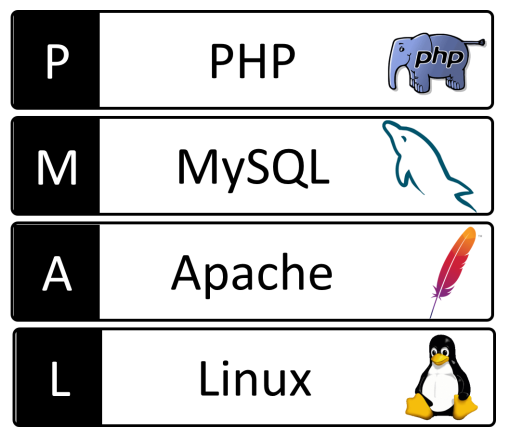
Before learning about the LAMP stack deployment, let’s have a look at it’s brief introduction. LAMP is an open source Web development platform that uses Linux as an operating system, Apache as the Web server, MySql as the relational database management system and PHP as an object-oriented programming language.

Steps to setup a LAMP stack on a VM instance:

    1. Create a virtual machine instance

      • In the Cloud Console Navigation menu, navigate to Compute Engine > VM Instances.
      • Set it’s name, machine type and Boot disk to Debian GNU/Linux 10 (buster).
      • In the Firewall section, select Allow HTTP traffic and Allow HTTPS traffic.
      • Click Create.
    2. Connect to VM instance

      We can connect directly to our instance using the SSH button on Console or using the gcloud compute ssh command, which is a part of the Cloud SDK.

      • In the list of virtual machine instances, click the SSH button in the row of the instance to which you want to connect.
      • Make a note of the IP address of the VM instance.
      • You can see this address in the External IP column.
    3. Install Apache 2’s PHP module:

Commands to be executed:

      • sudo apt-get update
      • sudo apt-get install apache2 php libapache2-mod-php
    1. Test Apache and PHP

      • Copy the external IP address of the VM instance from the VM instances page in the Cloud Console.
      • In a browser, enter your external IP address to verify that Apache is running:

Command: http://[YOUR_EXTERNAL_IP_ADDRESS]

We’ll see the Apache test page.

    1. Create a test file in the default web server root at /var/www/html/.

      • In order to verify whether the PHP and Apache are working together, edit the phpinfo.php file and access it with the VM instance’s external IP address. We can write the code to the file from the command line by using following command:

sudo sh -c ‘echo “[YOUR_PHP_CODE]” > /var/www/html/phpinfo.php’

Replace [YOUR_PHP_CODE] with the code that you want to write out.

For example:

sudo sh -c ‘echo “<?php phpinfo(); ?>” > /var/www/html/phpinfo.php’

      • Test it using the following command:

http://[YOUR_EXTERNAL_IP_ADDRESS]/phpinfo.php

We’ll see the standard PHP page that provides information about our current Apache environment.

If the page failed to load (HTTP 404), verify the following:

In the Cloud Console, check whether  HTTP traffic is allowed for the instance.

    1. Finally, in order to install MySql and it’s relevant components, execute the following command:

              Sudo apt-get install mysql-server php5-mysql php-pear

Related Posts

Latest Posts

  • All Posts
  • AI Powered Knowledge
  • ai/ml
  • CEO India Magazine
  • CMMI level 5 Certification
  • e-learning
  • Fintech
  • gaming
  • Generative AI
  • healthcare
  • manufacturing
  • News
  • OTT
  • Portfolio
  • supply chain
  • travel and hospitality
  • Tudip's AI Hackathon
  • Voxlearn Enterprises
    •   Back
    • Android
    • iOS
    • Java
    • PHP
    • MEAN
    • Ruby
    • DotNet
    • IoT
    • Cloud
    • Testing
    • Roku
    • CMS
    • Python
The Future of Workplace Learning: AI-Powered Knowledge on Demand

The Future of Workplace Learning: AI-Powered Knowledge on Demand

June 12, 2026

A few months ago, I was sitting in a meeting with a team lead who looked genuinely frustrated. Not because…

Read More
We Built VoXlearn Because Enterprise Training Was Broken: Here’s What We Did About It

We Built VoXlearn Because Enterprise Training Was Broken: Here’s What We Did About It

June 12, 2026

If you’ve ever sat through an end-of-quarter training report and thought, “We spent all that time and money, and this…

Read More
We Did It Again: Tudip Successfully Renews Its CMMI Level 5 Certification

We Did It Again: Tudip Successfully Renews Its CMMI Level 5 Certification

June 9, 2026

Nobody around here needed a memo to know something worth celebrating had happened. The message from the CMMI Institute said…

Read More

India

Plot No. 11/2, Phase 3, Hinjewadi Rajiv Gandhi Infotech Park, Pune, India – 411057.
info@tudip.com
+91-96-8990-0537

United States

1999 S. Bascom Ave Suite 700, Campbell CA. 95008, USA.
info@tudip.com
+1-408-216-8162

Canada

64 Caracas Road North York, Toronto Ontario M2K 1B1, Canada.
info@tudip.com

Mexico

Calle Amado Nervo #785 Interior B Colonia Ladron De Guevara 44600 Guadalajara, Jalisco, Mexico.
info@tudip.com

Singapore

77 High Street, #10-12B High Street Plaza, Singapore 179433.
info@tudip.com

Colombia

Cra. 9 # 113-53 Of. 1405 Bogotá D.C., Colombia.
info@tudip.com

UAE

Tudip Information Technologies L.L.C Office No 109, ABU HAIL BUILDING 13, Abu Hail, Dubai, UAE.
info@tudip.com

Nigeria

22 Kumasi Crescent, Wuse 2, Abuja, Nigeria.
info@tudip.com