

Forbes India Leader Recognition
e.preventDefault(); // Prevent form submission input.blur(); // remove focus input.value = ""; // optional: clear the input

How to integrate DocuSign in a .Net project?

How to integrate DocuSign in a .Net project?

Featured Image

In this blog, we’ll see the way to integrate DocuSign integration in Asp.Net.

Introduction to DocuSign

DocuSign is an eSignature technology that provides a way to sign the document electronically. The features of DocuSign include user identity management and authentication services. Nowadays, a lot of software companies ask us to sign on a device to accept their contract, correct? Okay, so the first step is to create a trial account on DocuSign. For testing, we can use a trial account until it goes to production.

How to start?

Step 1: Creating a test account

To get started, click here. It’s a Sandbox environment account and it will take you to the following API details screen. Fill in the required fields and get started.

Step 2: Generate Integrator Key

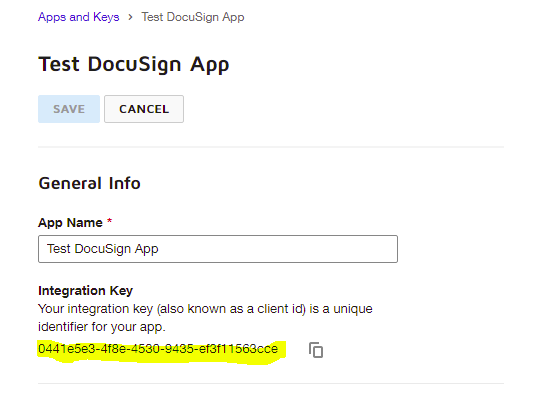
The Integrator key acts as the client id for the OAuth token. You can generate multiple integrator keys in the sandbox environment but when your API gets certified, only one integrator key can be used for the production environment. Make sure that you are using a valid integrator key in the sandbox environment Using the integrator key, we can integrate DocuSign API into your application. Also, this integrator key will serve as a token for the user.

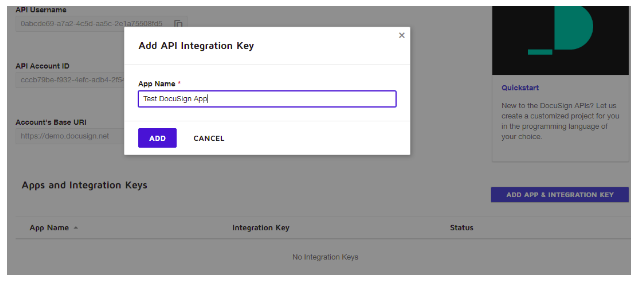
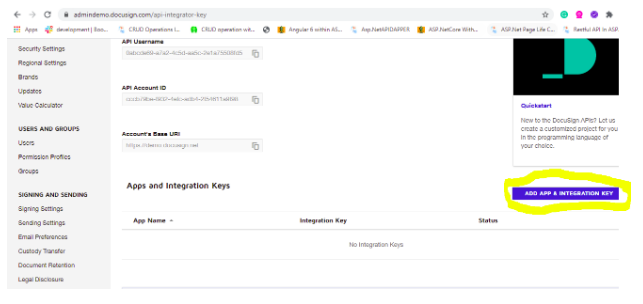
Your account will be without an integrator key by default, so you have to create an integrator key. Click “Add integrator key” to create an integrator key.
How to integrate DocuSign in a .Net project?

How to integrate DocuSign in a .Net project?

Step 3: Create ASP.NET MVC Empty project 

In visual studio select New Project — ASP.NET Web Application and enter your application name (“TestDocusign”).

Click OK.

Select Empty ASP.NET MVC template and click OK to create the new project.

Once you click OK, the project will be created with the basic MVC architecture.

Create a Controller and View:

Now, create an empty Controller and View. Here, I created a Controller with the name of “DocusignController”. Whenever we create an empty Controller, it is created with an empty Index action method. And create an empty View of this action method “Index”.

In visual studio using “Package Manager Console” install Docusign Integrations client from NuGet and enable it in your application,

Step 4: Integration key validation

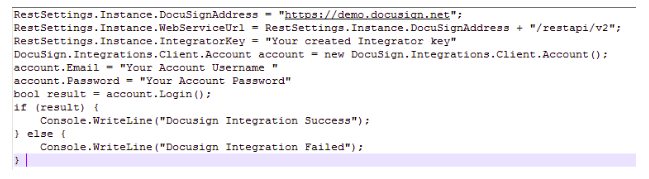
Now, implement the logic in your controller to validate the generated integration key.
How to integrate DocuSign in a .Net project?

Related Posts

Latest Posts

  • All Posts
  • AI Powered Knowledge
  • ai/ml
  • CEO India Magazine
  • CMMI level 5 Certification
  • e-learning
  • Fintech
  • gaming
  • Generative AI
  • healthcare
  • manufacturing
  • News
  • OTT
  • Portfolio
  • supply chain
  • travel and hospitality
  • Tudip's AI Hackathon
  • Voxlearn Enterprises
    •   Back
    • Android
    • iOS
    • Java
    • PHP
    • MEAN
    • Ruby
    • DotNet
    • IoT
    • Cloud
    • Testing
    • Roku
    • CMS
    • Python
The Future of Workplace Learning: AI-Powered Knowledge on Demand

The Future of Workplace Learning: AI-Powered Knowledge on Demand

June 12, 2026

A few months ago, I was sitting in a meeting with a team lead who looked genuinely frustrated. Not because…

Read More
We Did It Again: Tudip Successfully Renews Its CMMI Level 5 Certification

We Did It Again: Tudip Successfully Renews Its CMMI Level 5 Certification

June 9, 2026

Nobody around here needed a memo to know something worth celebrating had happened. The message from the CMMI Institute said…

Read More
CEO India Magazine Features Dipti Agrawal: The Woman Behind Intelligent Enterprise Solutions

CEO India Magazine Features Dipti Agrawal: The Woman Behind Intelligent Enterprise Solutions

June 9, 2026

There are moments at work that just stop you in your tracks. Not the big quarterly reviews or the product…

Read More

India

Plot No. 11/2, Phase 3, Hinjewadi Rajiv Gandhi Infotech Park, Pune, India – 411057.
info@tudip.com
+91-96-8990-0537

United States

1999 S. Bascom Ave Suite 700, Campbell CA. 95008, USA.
info@tudip.com
+1-408-216-8162

Canada

64 Caracas Road North York, Toronto Ontario M2K 1B1, Canada.
info@tudip.com

Mexico

Calle Amado Nervo #785 Interior B Colonia Ladron De Guevara 44600 Guadalajara, Jalisco, Mexico.
info@tudip.com

Singapore

77 High Street, #10-12B High Street Plaza, Singapore 179433.
info@tudip.com

Colombia

Cra. 9 # 113-53 Of. 1405 Bogotá D.C., Colombia.
info@tudip.com

UAE

Tudip Information Technologies L.L.C Office No 109, ABU HAIL BUILDING 13, Abu Hail, Dubai, UAE.
info@tudip.com

Nigeria

22 Kumasi Crescent, Wuse 2, Abuja, Nigeria.
info@tudip.com