



In this blog, we are going to integrate the Google Pay payment method in our PHP website using AuthorizeDotNet. We will mainly focus on what to do after generating the payment token. To add a Google Pay button and generate a payment token you can visit the official website.
Google Pay
Google Pay is one of the easiest options available to accept payments. Users can make payments on your website using their credit or debit cards saved in their Google account.
Users don’t have to manually enter their payment information on your site. Instead, their payment data, such as their email, name, billing, and shipping addresses, are already present in a payments selection dialog that is displayed to the user. When the user selects their payment type, the API returns the payment information through a supported payment gateway, or it’s directly processed on your encrypted secure server.
Getting started
To get started you need to have a merchant account on AuthorizeDotNet. Also, you need to request production access from here. More Detailed information can be found in the official docs, https://developers.google.com/pay/api/web/overview.
After your website is approved, you will receive a Google merchant ID that must be included with each Google Pay API request.
Also, you will need a supported payment gateway which you can lookup from supported processors and gateways list. Here we are going to use AuthorizeDotNet as a payment gateway.
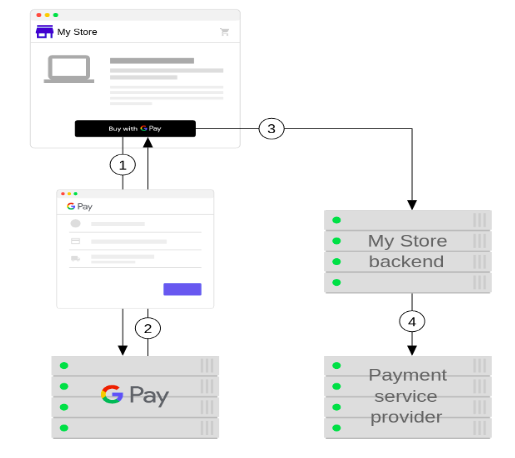
The Payment Flow:
- User clicks on the Google Payment Button which opens a payment sheet with a list of supported payment methods.
- A payment token is generated after the selection of one of the payment methods available.
- The payment token gets submitted by your website, along with the details about the purchase, to its backend.
- For executing the payment, the processing of purchase is done by the backend and the payment token is sent to the payment service provider.
Integration:
Follow this tutorial to successfully integrate Google Pay API in your web application.-
- Step 1: Define the version for Google Pay API.
- Step 2: Choose a payment tokenization method.
In step 2, since we are using AuthorizeDotNet, we need to make the following changes. Details can be found here.
To know how to check your gateway merchant Id visit What Is My Payment Gateway ID?const tokenizationSpecification = { type: 'PAYMENT_GATEWAY', parameters: { 'gateway': 'authorizenet', 'gatewayMerchantId': '[your Authorize.Net payment gateway ID]’ } }; - Step 3: Define supported payment card networks.
- Step 4: Describe your allowed payment methods.
- Step 5: Load the JavaScript library for Google Pay API.
- Step 6: Determining the readiness to pay with Google Pay.
- Step 7: Add a Google Pay payment button.
Be sure to go through the brand guidelines while adding the Google Pay button. - Step 8: Create a PaymentDataRequest object.
- Step 9: Registering an event handler for user gestures. In this step, a payment token will be generated which we will pass to the payment gateway without any modifications.
After performing the above steps, In the last step, i.e, obtaining the payment token we need to pass it to the gateway without any modifications.
Below is the minimum required configuration to setup and enable transactions using AuthorizeDotNet.
// Common setup for API credentials

$merchantAuthentication = new AnetAPI\MerchantAuthenticationType();

$merchantAuthentication->setName('authorize.net Login Id');

$merchantAuthentication->setTransactionKey('authorize.net Transaction key');

$refId = 'ref'. time();
You can get the required customer information from the form on your website that the customer needs to fill before proceeding to the payment method.
// Customer info

$customer = new AnetAPI\CustomerDataType();

$customer->setId('customer Id');

$customer->setEmail('email');

// Order info

$order = new AnetAPI\OrderType();

$order->setInvoiceNumber('Invoice number');

$order->setDescription('description');

// Bill To

$billTo = new AnetAPI\CustomerAddressType();

$billTo->setFirstName('firstName');

$billTo->setLastName('lastName');

$billTo->setAddress('billingAddress’);

$billTo->setCity('billingCity');

$billTo->setZip('billingPostcode');

$billTo->setState('billingState');

$billTo->setCountry('billingCountry');

$billTo->setEmail('email');

$billTo->setPhoneNumber('billingPhone');
Here we will receive the payment token that is generated in step 9 when the user clicks on the Google Pay button. We need to encode the token into base64. This encoding is done in order to transmit the data without loss or modification of the contents itself.
// Google Pay Token Request

$token = 'token';

$op = new AnetAPI\OpaqueDataType();

$op->setDataDescriptor("COMMON.GOOGLE.INAPP.PAYMENT");

$paymentToken = (base64_encode($token));

$op->setDataValue($paymentToken);

$payment = new AnetAPI\PaymentType();

$payment->setOpaqueData($op);

Then the data is sent to the AuthorizeDotNet after a successfully completed transaction.

//create a transaction

$transactionRequestType = new AnetAPI\TransactionRequestType();

$transactionRequestType->setTransactionType("authCaptureTransaction");

$transactionRequestType->setAmount("total amount");

$transactionRequestType->setPayment($payment);

$transactionRequestType->setBillTo($billto);

$transactionRequestType->setCustomer($customer);

$transactionRequestType->setOrder($order);

$request = new AnetAPI\CreateTransactionRequest();

$request->setMerchantAuthentication($merchantAuthentication);

$request->setRefId($refId);

$request->setTransactionRequest($transactionRequestType);

// Create the controller and get the response

$controller = new AnetController\CreateTransactionController($request);

$response = $controller->executeWithApiResponse($transactionMode);

if ($response != null) {

   if ($response->getMessages()->getResultCode() == "Ok") {

       ...

       if ($tResponse != null && $tResponse->getMessages() != null) {

           ...

           return true;

       } else {

           if ($tResponse->getErrors() != null) {

               ...

           }

       }

       ...

   }

   ...

}
Things to keep in mind
- Follow the Brand guidelines while adding the Google Pay button.
- Accepting Google Pay Terms and services.
- After obtaining a payment network token from Google Pay, encode the token’s blob with base64.
- Don’t forget to go through the Integration checklist available on the official docs before deploying on the production server to avoid any kind of errors.