



Automation
Automation is a testing technique, which executes the testsuites based on the requirement. It involves entering test data into the system, comparing the actual and expected results and generating the detailed report of execution.
IDE automation
Integrated development environment (IDE) is a software which is used to write code in various formats. Automation testing is impossible without the right tools. Automation is challenging and requires technical skills and no human intervention is needed once it is automated.
One of the most widely used tools for IDE automation is selenium IDE. It is available as a browser extension for chrome and Mozilla.
Selenium IDE
It is primarily used as a record and run tool which a user can develop test cases by recording the browser actions. It can be used to develop automated test cases for the web applications. Selenium IDE provides GUI for the recording interactions in your web browser.
Major Features of Selenium IDE:
- It allows me to edit the recorded test cases as per the requirement.
- Reorder the recorder actions
- Provides the xpath for the recorded element
- Data crawling
Steps to install selenium IDE:
- Launch chrome browser and navigate to browser extensions
- Search for the selenium IDE and click on the install button.
- A addon will be added to the chrome browser.
- Open the installed addon. A window with the required configurations will be opened.
Steps to record and play test cases:
- Click on create a new project and provide a name for the automation project.
- Click on the ‘+’ icon to create a new test case.
- Click on the record button to record the browser actions.
- Provide the base URL of the website and click on start recording
- A browser window with the provided base URL will be opened.
- It will start recording and will record each and every action on the webpage.
- The recorded actions will be listed over the GUI for further improvements.


Steps to edit the recorded actions:
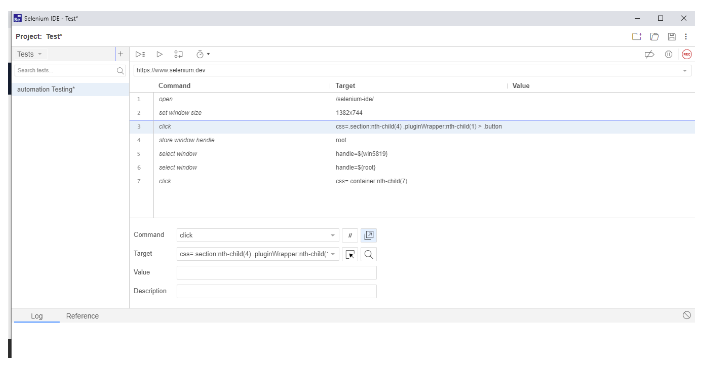
Selenium IDE will record the actions performed in the web browser and creates commands in the GUI window. Follow the below steps to edit or rearrange the action steps:
- Open selenium IDE GUI which lists the recorded test cases.
- It contains the set of functions for every action.
- Select the command from the list of commands.
- A preview for the set of commands will be opened, here we can change the action type and set the target values.
- We can set the path to the elements by using the target drop down.
We can save the recorded actions into a file and can be used to play back the actions with the content set into the target value. We can run the recorded actions in the command line interface.
Steps to run the test cases with command line:
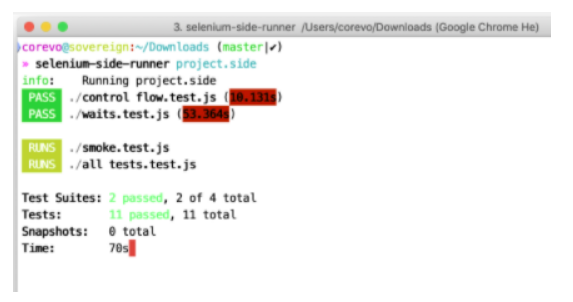
Selenium IDE supports the running of the test cases with the command line. It requires installing the necessary browser drivers. Follow the below steps to install and run the test in command prompt:
- Prerequisites:
- Node >v8.0
- Npm
- Selenium-side-runner
- Browser driver
- npm install -g chromedriver
- Save the recorded steps into a file with .side extension
- Run the below command
- Selenium-side-runner /path/to/.side file
Advantages
- Record and play actions
- Editable the recorded commands and set path to the elements
- Data crawling
Disadvantages
- Not flexible for the dynamic web elements
- Not able to send the request to fetch the data with the commands