



Overview:
Amazon Lightsail is a virtual private server and it provides the simplest thanks to start with AWS for developers, small businesses, students, and other users who want to host their applications on the cloud.
Lightsail provides the compute, storage, and networking capacity and capabilities to deploy and manage websites and web applications in the cloud. Lightsail includes everything you need to launch your project quickly like virtual machines, databases, CDN, load balancers, DNS management, etc. At a low, predictable monthly price.
This blog demonstrates how you can launch a WordPress site in a few clicks with the Lightsail instances.
Step 1: Sign up for AWS or if you already have an account sign in to AWS.
Step 2: Create a WordPress instance:
- a). Search for Lightsail service in the search bar and open it.

- b). On the Lightsail home page go to the Instance tab and click on the “Create Instance” button.
- c). Select your instance location (AWS Region and Availability Zone) whichever is close to your targeted traffic.
- d). Select your instance image:
- SelectLinux/Unix as the platform.
- Select WordPress as the Application.
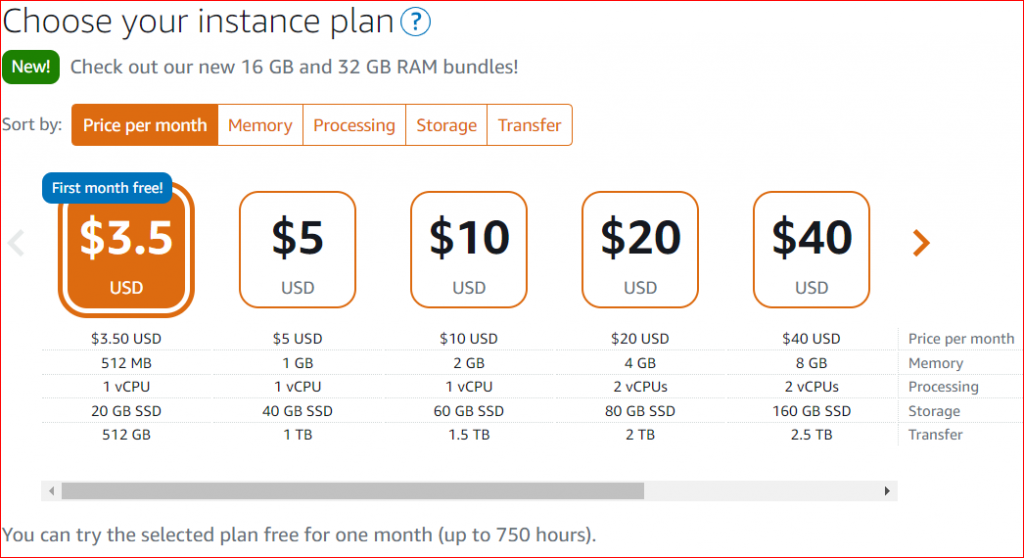
- e). Select your instance plan:
- Choose your instance plan according to your website and traffic.
- Amazon Lightsail instance plan includes predictable cost, machine configuration like vCPU, RAM, SSD, and data transfer allowance.
- Also, you can use Amazon Lightsail free for one month (up to 750 hours)
- f). Enter a name for your instance and a number of instances you want to launch:
- Instance name must be unique within each AWS Region in your Lightsail account.
- The instance name can contain 2 to 255 characters.
- An instance name can include alphanumeric characters, numbers, periods, dashes, and underscores.
- g). Click on the “Create instance” button.:
- The instance will take tmr to launch. Please wait for a few minutes.
- h). You can access the default WordPress website page using public IPv4
- http://PublicIPv4Address/ Replace “PublicIPv4Address” with the public IP address of your WordPress instance. You will get the Public IPv4 Address from the Lightsail console.



Step 3: Connect to your instance via Secure Shell:
- Now, we will access the “Demo_Instance_1” instance via ssh. Click on the ssh quick connect icon which is the present top right corner of your instance (Orange color Icon).
- Once you clicked on the ssh quick connect icon. It will launch instance shell in the new window.


Step 4: Get the password for the WordPress website:
Now, execute the below-given command to retrieve the default WordPress password.
cat $HOME/bitnami_application_password

Step 5: Sign in to the WordPress website administration dashboard:
- a). In a browser window, go to http://PublicIPv4Address/wp-admin. Replace “PublicIPv4Address” with the public IPv4 address of your WordPress instance. You will get the Public IPv4 Address from the Lightsail console.
- b).Enter “user” as the “Username”.
- c).In the “Password” field enter the password which you retrieved earlier through the command and Click the “Log In” button. Now, you are now signed into the WordPress administrator dashboard and you can perform admin actions, Install theme, etc.
Step 6: Create a static IP address and attach it with the Lightsail instance:
AWS provides default public IP for your WordPress instance. This will change if you stop and start your instance so we will create a static IP address and attached it with the Lightsail instance
- a). Click on your “Demo_Instance_1” instance.
- b). Now, go to the Networking tab and click on the “Create Static IP” button.
- c). Select the Static IP location and attach it to your instance.
- d). Name your static IP and click on the “Create” button.
- e). Now, you have static IP which will not change: go to http://Static-IPv4-Address/. Replace “Static-IPv4-Address” with the static IP address of your WordPress instance.


Bonus Point: Also, you can add the static IP address in your domain name records so whenever the user enters your domain name they will reach your website.